AI Link
Your plugins, controlled by Claude or ChatGPT.
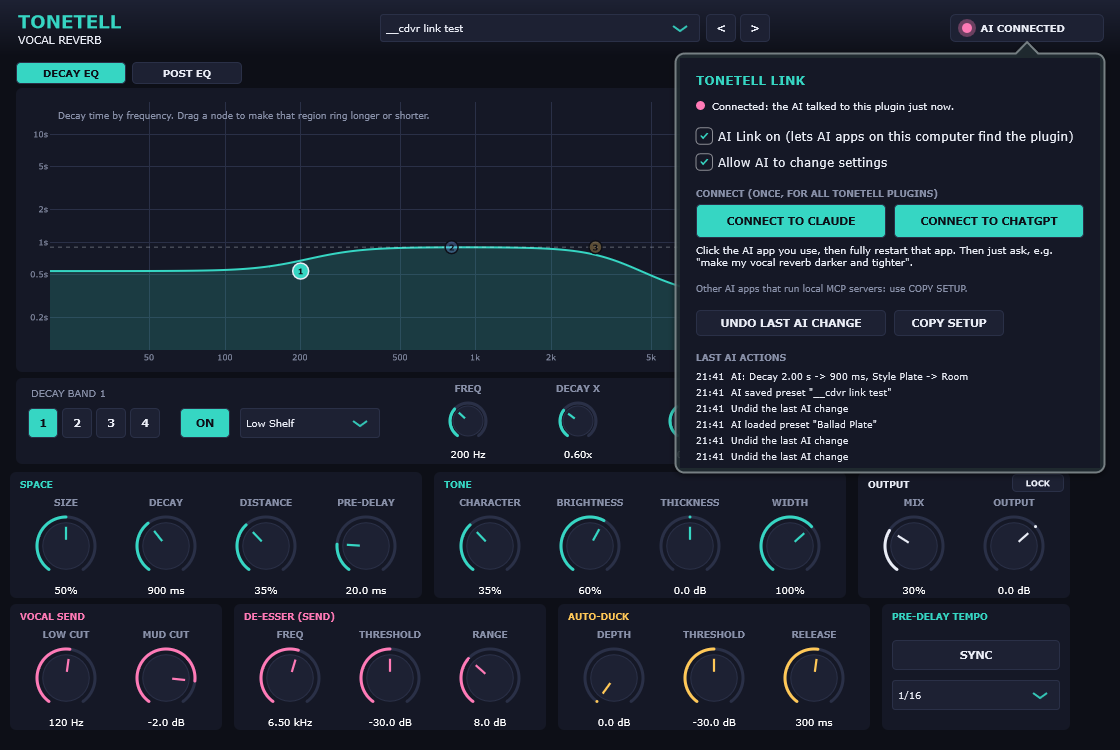
Tonetell plugins have an AI LINK button. Connect once, then tell the AI what you want to hear — it turns the knobs for you.
Every Tonetell plugin, including the whole Essentials suite, connects with the same one-time CONNECT click.
Set it up in three steps
- 01
Click AI LINK
Open the AI LINK panel in the plugin. One connection works for every Tonetell plugin.
- 02
Connect, then restart
Click CONNECT TO CLAUDE or CONNECT TO CHATGPT, then fully quit that app from its tray icon and reopen it. Needs Claude Desktop (claude.ai/download) or the ChatGPT desktop app (chatgpt.com/download) for Windows.
- 03
Ask in plain words
“Make me a '90s R&B plate.” The AI adjusts the plugin — and every change can be undone.
Then just ask
- YouCreate a very natural acoustic vocal reverb with minimal reflections
- YouMake me a '90s R&B plate
- YouGive me a modern pop vocal reverb
- YouListen to the chorus and tell me if the reverb is too bright
- YouUndo that
Private by design
Stays on your computer
The plugin only talks to apps on the same computer.
Audio never leaves
Listening sends numbers from the analysis only — never your audio.
Everything is undoable
Every change the AI makes can be undone.
You're in control
AI control can be switched off inside the plugin.
Compatibility
Works with Claude Desktop and the ChatGPT desktop app for Windows. Other apps that run local MCP servers can use COPY SETUP.
Honest note
ChatGPT's support for tools on your own computer is new and only in the ChatGPT desktop app (not chatgpt.com in a browser). Some users report ChatGPT starting a local tool but not using it in chats; if that happens, start a new chat, or use Claude Desktop, which works reliably today.
Stuck? See the AI Link troubleshooting table.